Design your store
Build the Keepsake layout
Follow the section order and starting settings in the Keepsake preset.
7 min read
On this page
Use this recipe to adapt the Keepsake home page to your catalog. Add your own products, collections, Pages and navigation in Shopify admin, then connect them in the theme editor.
Add the Keepsake theme first using Get started. If you build a recipe manually, add its sections in the order below. Preset names help you find them in Add section; the sidebar may then show the section's underlying name.
Keepsake: a photographic gifting story
Start with the Keepsake preset. Ten homepage sections are enabled in this order. Product selections still need your catalogue: the first product tab can use all products, but additional tabs, scene product links and Gift finder need resources selected in the editor. Benefit icons, Editorial image grid and Video story remain in the template, initially hidden.
| Order | Section | What to configure first |
|---|---|---|
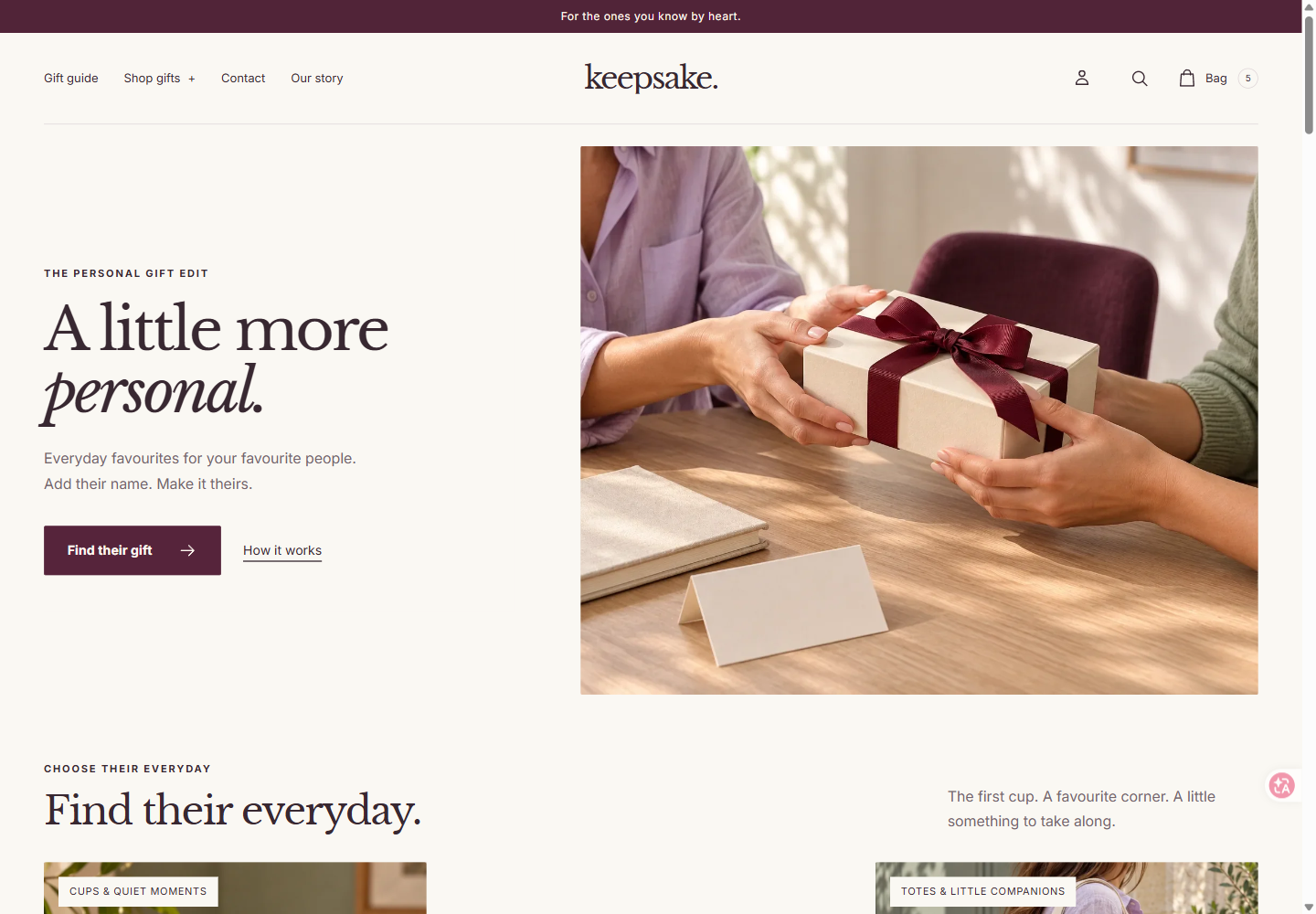
| 1 | Editorial hero | Use Open editorial, your Image and optional Mobile image, a short Heading and Italic line. The starting sample shows a gift hand-off. Maximum desktop heading size starts at 72px, minimum desktop height at 600px, and phone order is image first. Framed and edge-to-edge presentations remain available. |
| 2 | Collection image cards | Connect three cards to your destinations. Keep Desktop layout → Staggered editorial and Image shape → Match layout for the starting rhythm. The samples cover a morning mug, a print at home and an outdoor tote. Find Editorial collections in Add section. |
| 3 | Product collection tabs | Find Curated product tabs. Configure the three Product group blocks: Everyday favourites, Desk & home and Little additions. Choose a Collection or Hand-picked products for each; the starting display shows up to four products in four desktop columns and two phone columns. Set Section anchor to personal-edit if linking to this section. |
| 4 | Scrolling text | Find Statement marquee. Replace the three short messages. The start uses calm leftward movement, heading font, 44px desktop text, 28px phone text and the third color scheme. Links are optional. |
| 5 | Shop a scene | Select three actual products and check the numbered links against the photograph. The bundled sample is composed for a mug, journal and pouch; the photo is on the left. It illustrates separate products, not a purchasable bundle. See the scene setup below. |
| 6 | Gift finder | Select products in the six starting Gift idea blocks, then adapt the recipients, occasions and reasons to your selection. It starts with three desktop columns and Section anchor gift-finder. It becomes visible after products are selected. |
| 7 | Personalization steps | Find How personalization works. Replace the three steps with your actual choose, personalize and review process. It supplies the how-it-works anchor; the start uses the first color scheme. |
| 8 | Image story accordion | Explain the finish, a personal note and the thought behind the gift. Replace each story's text, picture and destination; opening a story changes its image. The photograph starts on the right with the second color scheme. |
| 9 | Questions and answers | Replace three examples with answers that affect the purchase: what is included, spelling, preparation or delivery. The starting layout is split. |
| 10 | Newsletter | Write a specific reason to subscribe and review the visible consent and privacy information. |
The sequence alternates browsing, product selection, motion, a shoppable scene and practical information. It does not require all ten sections on every store: hide repeated content when your catalogue is small. To show Benefit icons or the additional Editorial image grid, use its visibility control and supply useful, accurate content. To show Video story, add your own matching cover and film first. No film file is supplied by the package.
The starting header has a centred logo; the footer shows a large wordmark. For a long business name, inspect the footer at a narrow width and turn off Footer → Show large decorative wordmark if it is unsuitable.
Configure the product tabs and scene
In Product collection tabs, labels are names, not automatic category rules. The first group uses all products when neither its Collection nor Hand-picked products is selected. Other unconfigured groups appear only in the editor. Choose resources for all three groups if you want visitors to see three useful tabs; hand-picked products take priority over the collection. Products must exist in your store and be available to the online store.
In Shop a scene, open each Product block and select the actual item shown. For the bundled Everyday gift edit photograph, the starting points are:
| Product in sample | Horizontal position | Vertical position |
|---|---|---|
| Mug | 31% | 29% |
| Journal | 69% | 42% |
| Pouch | 71% | 83% |
Those coordinates belong to this photograph. When replacing it, reposition the points and check both desktop and phone. Numbers open the individual product pages so their options and required personalization can be completed; they do not add a set or apply a bundle discount. A blank Product picker produces no product link. Hide the section until its image and products agree.
The supplied product selections are deliberately unassigned to another shop's handles. The demonstration shop's configured catalogue is not imported with the ZIP.
Use the sample photographs deliberately
The starting layout adds Giving a gift (gift_handoff) for the opening, Everyday gift edit (gift_scene) for numbered shopping links and Out and about (out_and_about) for the tote category. Each has a different job alongside the existing morning, material-detail and personal-note images.
Choose your own picture with the section's image picker; a merchant image takes priority. Bundled samples follow Theme settings → Sample photography. Switching sample photography off removes that fallback, but does not remove images you selected yourself or create product photos in your catalogue. See Product details and media for the media workflow.
Connect the links and product selections
- Choose Theme settings → Shopping experience → Default shopping collection. The heroes' unassigned primary shopping links use this collection, or all products when it is blank.
- Check explicit links in collection cards and image stories. Some starting links point to all products; change them individually when needed. A global default does not replace an explicit link. Give Our story its saved Page destination, or remove its unused link label.
- Keep the opening How it works link at
#how-it-worksonly while the Personalization steps section remains present. If you remove that section, change the link too. - To point the primary hero button at the product tabs, set its link to
#personal-editand keep Product collection tabs → Section anchor atpersonal-edit. Check the configured products are visible. A hero link to#gift-finderlikewise needs selected products and a visible finder. The package's unassigned primary link safely uses the default shopping collection. - In Gift finder → Gift idea, set Recipient group, Occasion and Reason to choose. Custom labels lets you enter your own groups. The finder filters this curated selection of up to 12 products, not your entire catalogue. Its budget uses starting prices in the displayed currency; a chosen variant may cost more.
- Save and inspect the actual storefront, including the linked destination pages.
Result: each section has a job and every shopping action reaches your own content.
Adapt a recipe without losing its rhythm
With a small catalogue, give the product tabs, scene and finder different jobs rather than repeating the same selection without context. The tabs can separate daily use, desk/home and little extras; the scene explains a complementary selection; the finder helps by recipient, occasion and budget. Hide a section if it adds no useful choice. Featured gifts remains available as a simpler Product grid alternative.
Hide a film until the cover and source are ready. Replace sample material and delivery claims with verified facts. Keep the copy and image together when moving a Flexible content group; moving a child changes the content within that group.