Products & gifts
Offer gift extras
Configure paid extras beside a product or suggest independent finishing touches in the bag, with clear quantity rules.
5 min read
On this page
Use a real Shopify product for a paid card, wrapping service or other finishing touch. Its product price and availability remain the source of truth. Keepsake offers two placements with different behaviour: an extra selected with a main product, or an independent suggestion added from the bag.
Prepare an extra product
- In Shopify admin, create the product with its actual price, description, image and stock or availability settings.
- Explain exactly what the customer receives. For wrapping, say whether one purchase covers one item or a group. For a blank card, distinguish it from a written gift message.
- For direct selection beside another product, use a simple, available product with one variant and no additional required choices.
- Review its real product template. Required personalization, app fields, gift-card recipient fields or subscription requirements need the complete product page rather than a one-click extra.
Result: the extra is a normal priced product that your store can actually sell. Adding it to a theme block does not create a wrapping service, change fulfilment rules or make an unavailable product purchasable.
Add an extra to a product page
- In the theme editor, open the main product's template and Product and purchase.
- Add a Gift extra block and select Extra product. Up to two such blocks are supported. Do not choose the main product as its own extra.
- Enter a short Heading and Description. State what is included and how the extra is charged.
- Choose Quantity rule, using the examples below.
- If desired, enable Group optional gift extras in the section to place the choices in the supplementary gift area.
- Save, then select the extra on the storefront and add the main product to the bag.
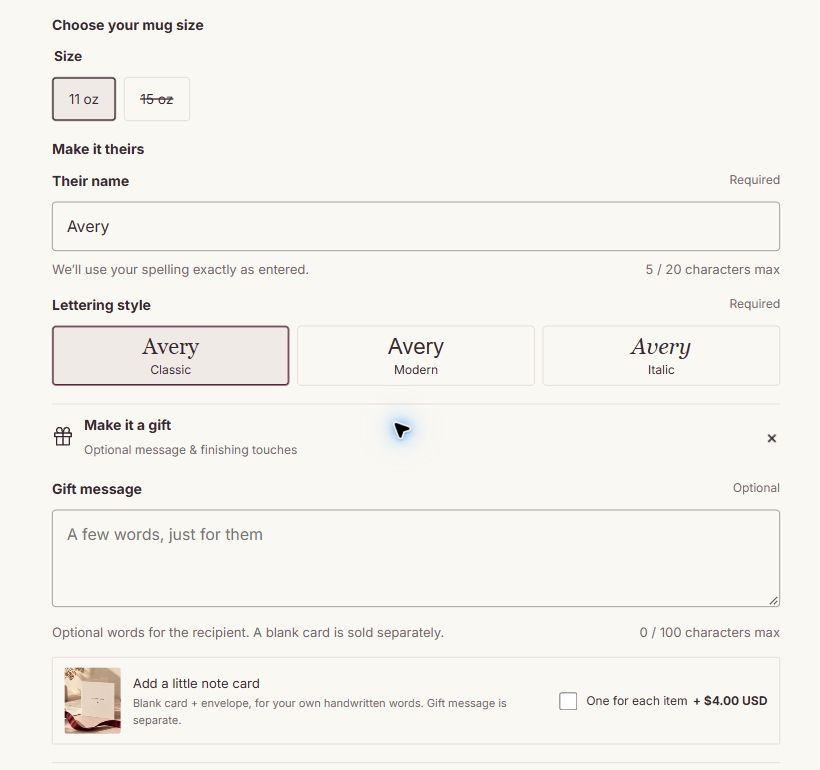
Choose the right quantity rule
| Quantity rule | If this selection contains three main items | When main quantity becomes five |
|---|---|---|
| One per selection | One selected extra. | It stays at one. |
| One for each item | Three selected extras. | It becomes five after the quantity update. |
One per selection means one extra for this particular gift selection. It does not mean one extra for the whole order. If a shopper adds two separate personalized gift selections and chooses this extra for each, each selection receives its own extra.
Use One for each item for a service charged for every main item. Use One per selection only when your business can fulfil one extra for that selection. The theme calculates the selected quantity; it does not decide your packaging policy.
The extra's real unit price is shown separately. This is not a discount bundle or an automatic free-gift offer.
Understand the association in the bag
Product-page selections use Shopify's native parent-child cart association, together with the theme's selection information to distinguish different personalized gifts. The associated extra belongs to the main line with which it was selected.
- Removing an extra leaves the main product in the bag.
- Removing the main product removes its associated extras.
- An extra set to One for each item follows the quantity of its associated main line. Its quantity is managed with that main item rather than as an unrelated editable quantity.
- One per selection remains one while that selection exists.
Save pending main-item quantities and the order note with Update bag before moving to other bag actions. If a gift selection is inconsistent, review the refreshed bag and use Sync gift quantities when offered, or remove the affected extra. The theme prevents continuing through its bag checkout control while a known association problem remains. These are storefront safeguards, not a server-side order-validation service.
Result: the bag explains the relationship and keeps the selected rule attached to the correct gift. Test it with your discounts, cart apps and fulfilment process; native association alone is not a guarantee that every external app will preserve the relationship.
Suggest independent extras in the bag
- Open Theme settings → Shopping experience → Gift extras in the bag.
- Set Heading and Description to explain your finishing touches.
- Select up to three products in Extra product 1, Extra product 2 and Extra product 3.
- Save, add a main product and inspect both the bag drawer and bag page.
Result: the suggestions appear where applicable. An eligible simple product can be added there after its actual product template is checked. Products requiring their own choices use View details.
An item added from these suggestions is independent. It is not automatically associated with a particular gift already in the bag, and the product-page quantity rules do not apply to it. Describe the service clearly enough that a shopper knows how many to buy.
Test before offering a paid service
Try each quantity rule with main quantity one and greater than one. Add the same main variant twice with different names, select different extras and confirm that changing or removing one selection affects the correct lines. Try removing only the extra, a sold-out extra and your intended discounts. Complete a test checkout and inspect the order and your fulfilment workflow.
The checkbox is missing or the extra opens its product page. Check availability, variants and the actual product template. The full-page route is required when a simple direct selection would bypass its choices. Turning on a quick-buy setting does not remove those requirements.
The wrapping product added from the bag did not disappear with a mug. Bag suggestions are independent products. Use a product-page Gift extra when you need an association with that gift.