Products & gifts
Add product details, images and video
Fill the product detail area, choose useful image crops, and set up an optional Shopify-hosted or direct WebM film.
10 min read
On this page
Give shoppers both the facts needed to order and the photographs needed to understand the product. The short purchase-area information and the full detail section below it are separate, so configure both deliberately.
Fill the full product detail area
- In Shopify admin, open the product and complete its Description with verified materials, size, what is included, care and any relevant limitations.
- In the theme editor, open the product's template and find Product story and details, below Product and purchase.
- Open its Description with image block. Set Description source → Product description to use the content you just saved.
- Set the block's Heading and choose whether to Show image. Select Image, or leave Use product photo when no image is selected enabled to use the product's second image, falling back to its first.
- Choose Desktop image position and Image fit → Fill or Show whole image. Save and inspect the detail section on the storefront.
Result: each product shows its own description in the shared template. A product with no meaningful description does not produce an empty description panel. Blank paragraph-only content is treated as empty; meaningful image- or video-only content is retained.
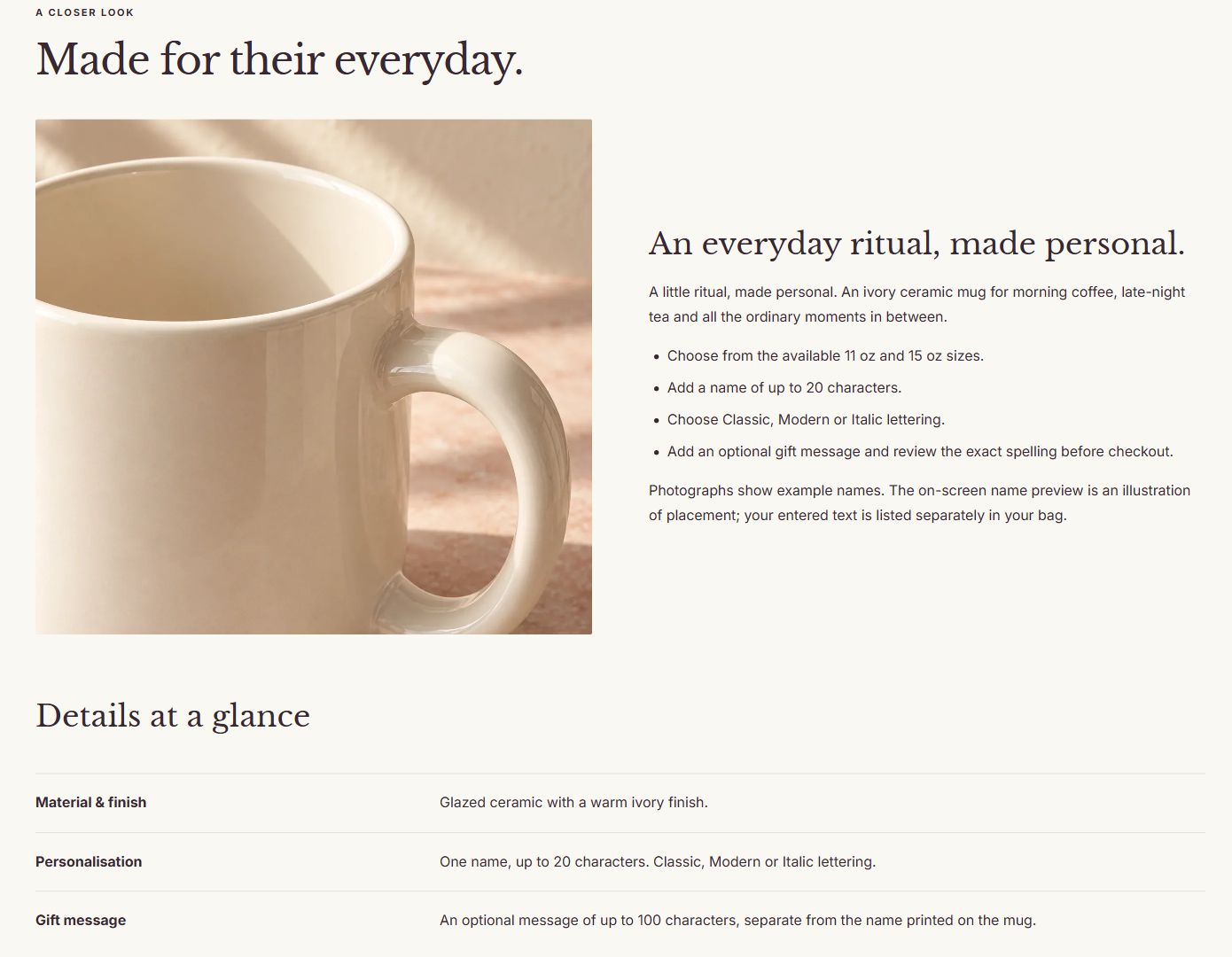
For content entered directly in the template, choose Description source → Custom text or metafield and fill Description. That content is shared by all products using the template unless you connect a supported product-specific dynamic source.
Add Specification row blocks for concise facts using Label and Value. Empty rows stay hidden. Use Expandable information for care or other longer guidance, with Open by default when appropriate. Hide or remove the entire section if it is unnecessary.
Show different care information for each product
Use a product metafield when the layout stays the same but its information differs by product. This example adds a separate care panel while keeping the main description above it. You need no theme-code changes.
Create and fill a Rich text definition
- In Shopify admin, open Settings → Metafields and metaobjects, then the product metafield definitions and Add definition. You can also open a product's Metafields area and choose Add definition there.
- Name the definition Care instructions. For a new custom definition, an identifier such as
custom.care_instructionsis suitable. If a suitable definition already exists, use it rather than creating a duplicate. - Under Select type, choose Rich text. Do not use a product reference, file or JSON type for this example. Save the definition.
- Open a product in Products. In its Metafields area, find Care instructions; use Show all if necessary. Enter that product's verified care guidance and save.
- Repeat on a second product using different, accurate guidance. Leave a third test product's value empty so you can check the empty state.
Result: you have one definition and separate saved values per product. A definition alone does not supply the instructions. Rich text supports formatted text and matches this theme's rich-text Description setting. Shopify documents creating a definition and its content types.
Connect the value to the detail panel
- In the theme editor, open the product template and preview the first product. Use a product template, rather than the homepage, so the dynamic source has the product being viewed as its context.
- In Product story and details, add a second Description with image block. Keep the existing Product description block if you still want the main description.
- In the new block, set Description source → Custom text or metafield and Heading → Care instructions. Turn Show image off for a simple text panel, or choose an appropriate picture.
- Beside the Description setting, choose Connect dynamic source. Select the current template's Product context if the picker asks for a source, then select your Care instructions metafield. Replace any sample body text with this connection; do not type a code expression into the field.
- Save. Change the preview product to the second product and inspect its different instructions. Then preview the product with the empty value, using the same template.
Result: one shared block shows the viewed product's saved care text. With an empty value, this Description with image block hides from shoppers, including its heading and image. Other populated detail blocks remain. The editor can show a setup hint for the empty block.
If Care instructions is absent from the source picker, check that it is a product definition of type Rich text, that you are on a product template and that the picker is using the template's Product context. Check Description source first if the Description control is not visible. If every product still shows the same words, confirm that the field contains a dynamic-source connection rather than manually entered shared text. Shopify explains connecting metafields to the theme editor.
Metafield values are store data and can affect any theme or app using the same definition, even while you edit an unpublished theme. Use test products when learning. This recipe changes display content; it does not create buyer-input fields, change prices or send production instructions to a supplier. Use Personalized products for text the shopper enters. Create another template when the layout or field structure must differ, rather than one template for every product's care text.
Keep purchase-area information concise
Inside Product and purchase, Product information blocks provide short headed panels. A Description block displays the product's actual description there; Show in accordion controls its presentation.
Avoid showing the same long description twice. Use the purchase area for facts needed before pressing the buy button, and the full detail area for the complete explanation. Keep both accurate when they mention the same materials or personalization limits.
Set Making time, Delivery time, Returns summary, Delivery note and Delivery information link to your real arrangements. Compact lines and Tinted card are presentation choices under Delivery information style; neither calculates a promised arrival date or changes shipping rates.
Prepare useful photographs
Prepare a clear main view, a closer detail and a use or packaging view. Show the actual product and distinguish included items from styling props. The dimensions below are starting recommendations, not upload limits.
| Location | Useful starting file | Setting to check |
|---|---|---|
| Square cards or a square hero | About 1400–1600 × 1400–1600px | Image ratio → Square and image fitting. |
| Portrait cards | About 1200 × 1500px | Portrait, a 4:5 frame. |
| Shared landscape image blocks | About 1560 × 1200px | Landscape is often about 1.3:1, not automatically 16:9. |
| Editorial hero | About 2000 × 1500px, plus a phone crop if needed | Image fit, Mobile image, desktop height and phone image shape. |
| Product gallery | About 2000px on the longest edge | Product and purchase → Image ratio and Image fit. |
| Video cover | About 1600 × 1600px square or 1920 × 1080px wide | Video story → Cover shape and focal point. |
Choose fitting for the photograph:
- On product cards, Theme settings → Shopping experience → Product photo fit → Show the whole product preserves white-background packshots and artwork edges. Fill the card crops to the selected shape.
- In Product and purchase, Image fit → Fit preserves the whole product; Fill uses the whole frame.
- Heroes and collection cards call these options Show full image and Fill frame.
A contained photograph may leave space around the product. A filled photograph may crop it. Use a suitable frame and background rather than stretching the source.
Set phone crops and image descriptions
Use Shopify's image controls to place the focal point on the subject. Where a section offers Mobile image, select a separately composed phone image; its own focal point is used. Editorial hero, Simple gift hero and Collection image cards support this. Image story accordion uses one image across layouts, so choose a composition that survives the crop.
In product media, write useful alt text for each image. It remains available to screen readers. Theme settings → Shopping experience → Show image descriptions below product galleries optionally shows those descriptions as visible captions; it starts off. Keep important size, care or personalization instructions in text as well as any photograph.
Show thumbnails, Enable image enlargement, Show title and price before photos on mobile and Use a compact mobile gallery are available in Product and purchase. Set them using your actual media, then test the complete gallery. Add product media to the product in Shopify admin; the theme editor does not create a second product media library.
Add a film to a page
Product videos and 3D models added in Shopify admin appear below the product photographs and in Quick shop. Open their labeled panels to play or explore them. Closing a panel stops its media, and only one panel in a gallery stays open at a time. For 3D media, Shopify's viewer controls load on demand; if loading fails, close and reopen the panel to retry. Confirm the actual media on your customers' devices, including any AR behavior.
In Add section, choose Film with text or Wide film, then open Video story.
- Select a descriptive Heading and Video cover or fallback image.
- Choose Shopify-hosted video, or provide Direct WebM video URL when you specifically need WebM. A direct WebM URL takes priority if both sources are present. The URL must point to a publicly loadable video file, not a webpage containing a player.
- Set Layout, Desktop media position, Cover shape and Vertical cover focal point for your composition.
- Fill Transcript or visual description with the words or visual information needed to understand the film. If your film uses speech, provide appropriate captions in the media as well; this text field does not generate timed captions.
- Choose Loop after the visitor starts playback only when repetition helps. Save and try playback on the browsers and devices your customers use.
Result: the film starts after a visitor action. Controls become available for playback, and the theme pauses it offscreen or when the tab is hidden. If loading fails, the visitor can choose Try again; the theme does not continuously reload a failed source.
Shopify can process an uploaded video into other delivery formats, so selecting Shopify-hosted video does not guarantee a WebM response. Use the direct URL setting for a specific WebM file. The theme does not convert or host a video for you, and the packages do not contain ready-made film files.
A cover without a video works as a static image. With no media, the section hides from the storefront unless you explicitly enable Use sample image when media is empty and global sample photography is also on. Replace or remove that sample before launch. Only use media you have permission to publish.
Common mistakes
The detail heading appears in the template but no description appears on the product. Check the actual product's description, the block's source and which template is assigned. A section title does not supply its missing body content.
Every product shows the same material. Text entered directly in a shared template is shared. Use the product description, an appropriate dynamic source or a separate template.
A video link fails. Open the direct file URL and confirm its access and format. Check the cover separately. Do not expect repeated clicks to correct an invalid or inaccessible source.