Products & gifts
Set up personalized products
Choose a product template, configure reliable text and choice fields, and understand the optional name preview.
9 min read
On this page
Keepsake collects names, initials, messages and text choices alongside the purchased item. Configure the fields around what you can actually make, and check their saved values in a test order before accepting customer orders.
Choose a product template
Use Default product for products without personalization. Six additional templates provide starting fields:
| Template | Starting fields | Initial name preview |
|---|---|---|
personalized |
Required Name, up to 30 characters; optional Lettering choice and Message, up to 100 characters. | Off. |
personalized-mug |
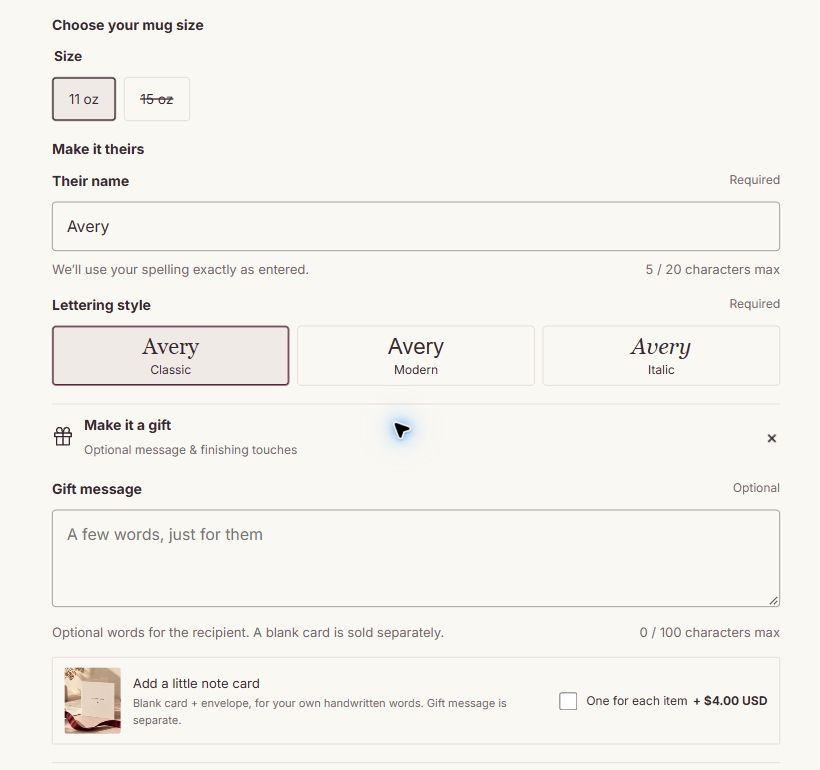
Required Name, up to 20 characters; required Lettering, initially Classic; optional Message, up to 100 characters. | On; supply a suitable blank product photo. |
personalized-tote |
Required Name, up to 20 characters; required Lettering, initially Classic; optional Message, up to 100 characters. | Off; the fields have preview roles ready if you enable it. |
personalized-print |
Required Family name, up to 30 characters; optional printed Caption, up to 80 characters; separate Message, up to 100 characters. | Off. |
personalized-journal |
Required Initials, up to 6 characters; optional Message, up to 100 characters. | Off. |
personalized-pouch |
Required Name, up to 20 characters; optional Message, up to 100 characters. | Off. |
These limits and words are editable starting values, not specifications for your products. The mug, tote, print, journal and pouch templates initially require spelling confirmation; the general personalized template does not enable it by default.
- Create or open the actual product in Shopify admin. Add its price, variants, images, description and availability.
- Choose its Theme template when available and save the product.
- In the theme editor, open the matching product template and select that real product for the preview.
- Open Product and purchase and edit its fields and purchase settings.
Result: products assigned to this template use its field configuration. An editor preview is not a template assignment. If the template is only in an unpublished theme, follow the assignment guidance in Get started and plan the assignment at launch.
Changing a template changes every product assigned to it. Create a separate template when products need different fields. For product-specific materials, descriptions or other supported content, connect Shopify metafields through the dynamic-source control where the setting allows it; creating a template does not create those metafields.
Configure each field
In Product and purchase, add or open a Personalization field block. Up to eight are supported.
- Enter a unique Order property name, such as
Name,InitialsorPrinted line. It must be non-empty and must not start with_. - Write a clear Field label, Example input and Help text. Explain punctuation or capitalisation if it affects production.
- Choose Input type → Single line, Multiple lines or Dropdown.
- Enable Required only when the answer is necessary. For text, choose Maximum characters from 1 to 200 to match your process.
- For a dropdown, put one choice per line in Dropdown options. Default dropdown option must exactly match an available choice; leave it empty when shoppers should make their own selection.
- Save and submit a sample value from the storefront preview.
Result: the answer is saved as a property of that purchased line and appears in the bag. A field label is shopper-facing; Order property name identifies the saved answer. Keep that property name stable once orders and fulfilment processes depend on it. Two fields must not share the same property name.
Choice answers are saved as text. They do not change the price, stock or main product image. Use actual Shopify variants for priced or stocked options. Keep wording such as Classic, Modern and Italic only if you offer those choices.
Choose the right kind of option
| What the customer is choosing | Configure it with | Example |
|---|---|---|
| An option with its own price, stock or product photograph | Actual Shopify variants and the Variant picker | Mug size or a priced frame finish. |
| An unpriced production instruction | A Personalization field with Input type → Dropdown | A motif or layout that your production process offers. |
| A separately priced extra | Gift extra linked to a real product | A note card or a wrapping service. |
| Text printed on the item | Single line or Multiple lines; turn Treat as gift message off for an optional printed caption | Initials or a line beneath the family name. |
| A message for the recipient | Optional Multiple lines with Treat as gift message on | A birthday note. |
Show choice buttons or image cards
- In an existing Personalization field, set Input type → Dropdown and enter one choice per line in Dropdown options.
- Choose Choice display → Choice buttons for a short visible list of up to 12 choices. Use concise labels that explain the actual choice.
- For Image cards, use up to six choices and select Option 1 image, Option 2 image, and so on. These match the non-empty option lines in order. Supply your own accurate image for every choice. If you reorder the lines, reorder the images to match.
- Leave Default dropdown option empty when customers must actively choose. Optional choices include Clear selection; required choices must be selected before purchase.
- Save and check the selected answer in the summary, bag and test order. The bag editor presents the same answer as a dropdown.
Expected: customers can see and compare the available instructions. With missing images, image cards fall back to text buttons. Long or ambiguous lists keep the dropdown; without JavaScript the native dropdown remains usable. These images illustrate a choice; they do not change the product gallery, price or inventory. Use Shopify variants for those behaviours.
Keep Choice display → Dropdown to retain the existing automatic Classic / Modern / Italic lettering samples when a field has Preview role → Lettering style. Choosing another display replaces those sample buttons; the selected lettering can still drive the name illustration.
Fix duplicate order property names
Two fields on the same buying form must not save to the same Order property name. For example, keep Name for the name field and use Motif for a separate design choice. Changing only Field label does not change the saved property name.
When a duplicate is detected, the editor identifies the two conflicting fields and purchase is disabled until you give them unique property names. Customers see a short unavailability message instead of submitting ambiguous answers. Correct the settings, save and reload the product. Existing order answers are not renamed.
Separate printed text from a gift message
For an optional Multiple lines field, Treat as gift message controls how that field is presented. With Product and purchase → Group optional gift extras enabled, an optional field treated as a gift message joins the Make it a gift area. An actual printed caption should stay beside the other personalization fields.
- For text printed on the item, turn Treat as gift message off. It stays in the personalization area and is not collapsed as an optional gift message.
- For a separate recipient message, keep it on. Explain whether your business prints, handwrites or otherwise includes that message.
- In
personalized-print, Caption is the optional printed line beneath the family name. Message is a separate gift message. A blank card is a separately priced product where offered.
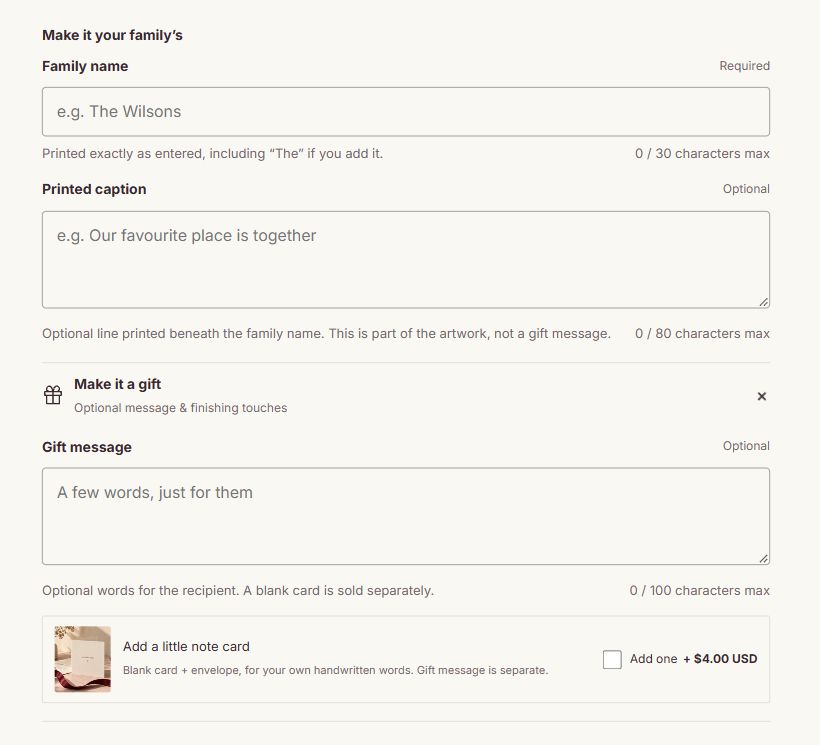
If you are updating an existing theme configuration, new defaults do not rewrite your saved blocks automatically. Open the block whose Order property name is Caption, set Field label to Printed caption, correct its help text and turn Treat as gift message off. Keep the property names Caption and Message unchanged, then test both values in the bag and order.
Add spelling confirmation
In Product and purchase, enable Require spelling confirmation and set an accurate Confirmation label. For example, ask the buyer to check their initials or family name, rather than referring to a field the product does not have.
The customer must confirm before adding a personalized item. This is a review step, not an approval of a production proof. Use Collapse optional messages and Group optional gift extras to keep supplementary choices compact without hiding the text used to make the product.
Configure the illustrative name preview
- Prepare a front-facing blank photograph of the actual product, without a sample name already printed on it.
- In Product and purchase, choose Blank photograph for name preview and enable Enable illustrative name preview.
- In the relevant field, set Preview role → Name on the product. You may set one dropdown to Preview role → Lettering style.
- Choose Name placement. Use a supplied position, or Custom position with Text horizontal position, Text vertical position and Text area width.
- Set Preview lettering color, then inspect short and maximum-length names on desktop and phone views.
Result: the optional illustration places entered text on the chosen image. The lettering preview supports Classic, Modern and Italic. Other choice names can still be saved as text, but do not create additional visual lettering treatments. Match preview fields by property name is an advanced fallback; explicit preview roles are easier to maintain when labels change.
The preview is a placement illustration. It does not generate print files, curved engraving, a supplier proof or automatic fulfilment. The theme does not provide photo uploads, a design editor, conditional price calculations or production artwork. Leave the illustration off when it cannot represent the product honestly.
Check the buying flow
Try a missing required answer, the longest permitted text, punctuation and an unavailable variant. Add two differently personalized copies of the same product and verify that each keeps its own answers. Edit an answer in the bag, cancel an edit, and then save a correction. Complete a test order and confirm the values in Shopify admin and your own fulfilment workflow.
Quick shop asks the shopper to continue to the product page. Its overview does not replace the complete personalization form. Shoppers continue to the product page to enter their answers before adding the item. See Quick shop and payments.
The preview does not appear. Check the section-level enable switch, blank photograph and field preview roles separately. A template containing Name fields does not necessarily have its preview enabled.