Products & gifts
Quick shop and payment buttons
Choose when shoppers can add from a product card, when they need the full product page, and why a payment button may be hidden.
6 min read
On this page
Quick shop, Add to bag and accelerated payment buttons serve different purposes. A shopper may be able to view an item in quick shop while still needing its full product page to buy it.
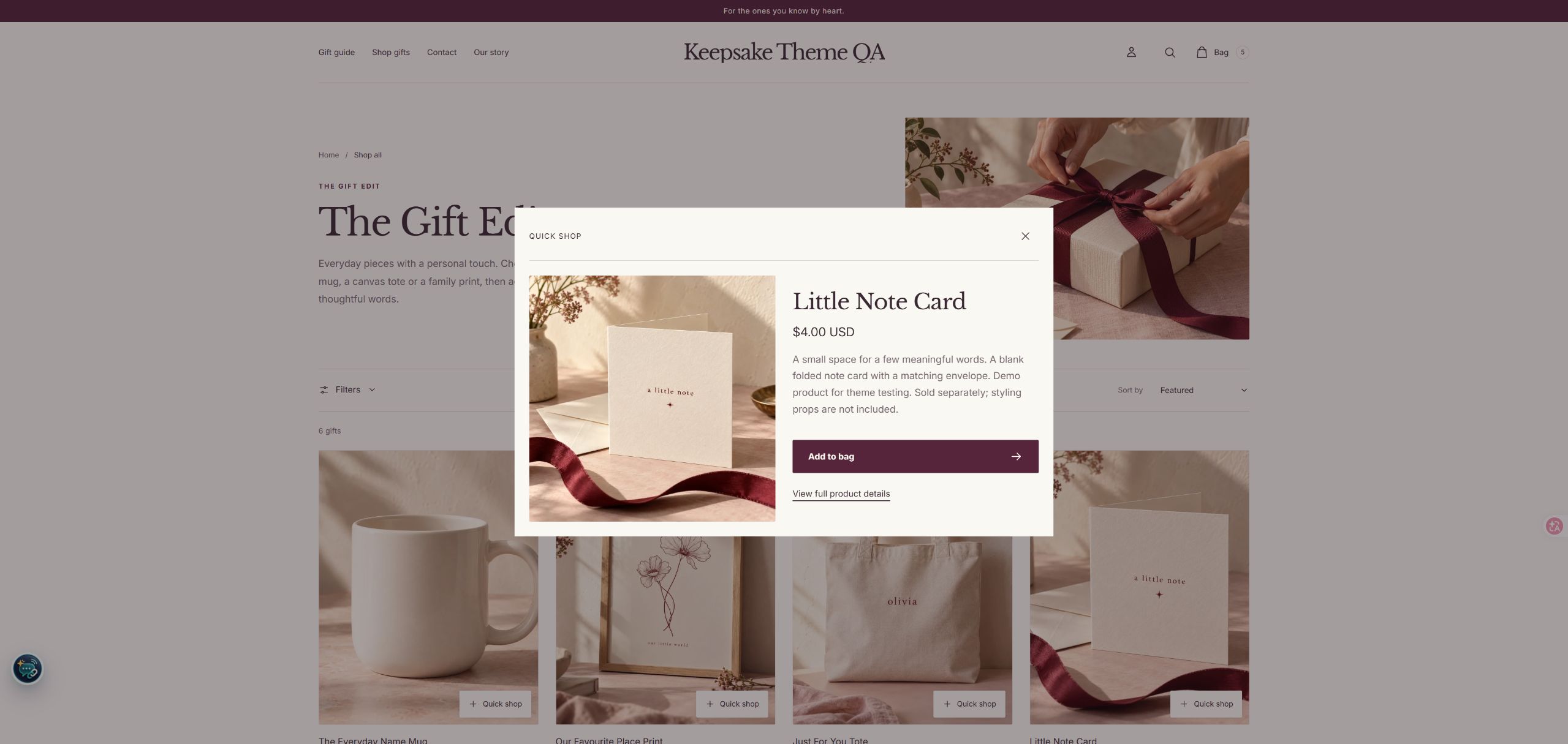
Turn quick shop on or off
- Open the theme you want to edit under Online Store → Themes.
- In the theme editor, open Theme settings → Shopping experience.
- Set Show quick shop on product cards.
- Choose Quick shop button position → On the image or Below the price.
- Save and open the storefront preview. Check a collection on a phone-sized screen as well as desktop.
Expected: a labelled quick-shop button opens a product overview. The product title and image still provide a route to the full product page. Turning quick shop off removes that overview button; it does not remove the normal product links.
To choose the destination after an add, use Shopping experience → After adding to bag: Open the bag drawer or Go to the bag page. An action made while already on the bag page may refresh that whole page so its quantities and total stay current.
Shopify-hosted product videos, YouTube or Vimeo videos, and 3D models also appear in expandable media panels in quick shop. Add them to the product in Shopify admin. Opening a panel reveals its player; closing the panel or quick shop stops playback. Unit pricing appears for a single-variant product when it is configured in Shopify. The full product page remains available for all options and details.
Allow direct add for a simple product
Open the product's assigned template in the editor, then go to Product and purchase → Buy buttons → Allow quick add for simple products. Save and check that same product in the storefront preview.
The setting permits eligible products; it does not override required choices. Templates are shared: changing this setting affects the products assigned to that template. See Personalized products before changing a shared template.
| Product or template condition | What the shopper should expect |
|---|---|
| One default variant, available to buy, with no additional requirements, and direct add allowed | Quick shop can show Add to bag. |
| Size, color or another variant choice | The overview links to the full product page to choose options. |
| A Personalization field, even when optional | The full product page provides the configured fields and review flow. |
| An available Gift extra configured on the main product | The full product page lets the shopper decide whether to include it. |
| A gift card | The full product page handles its purchase and any recipient information. |
| A required subscription or other required purchase plan | The full product page is needed for the purchase options. |
| An app block or non-empty Custom Liquid in the product section | The full product page preserves the additional form requirements. |
| Direct add turned off in Buy buttons | The product overview remains available, with a full-page purchase route. |
| An unavailable product or variant | A purchase button is unavailable; changing the theme setting does not make stock available. |
Quick shop does not provide a subscription-plan selector. If a product offers an optional subscription alongside a one-time purchase, direct add must not be presented to customers as a subscription purchase. Use the full product page when they need to select a plan, and test your subscription app's actual flow.
Check if direct add is missing: confirm the product's assigned template, the Buy buttons setting, current availability and every condition in the table. A configured optional field still counts as a field. Leave the full-page route in place when a shopper needs to make a choice.
In the theme editor's product preview, expand Theme editor: purchase options beneath the Buy buttons area. It explains the current reasons a shortcut uses the full product form instead. This guidance is for the merchant in the editor; customers do not see that panel. After adjusting a setting, save and check the actual storefront purchase flow as well.
The home-page Featured product is already a full product form. Its Buy buttons block has no separate quick-add eligibility switch. Quick shop on a product card uses the product's own assigned product-page template.
Direct add from gift suggestions
Gift extras on a product page and suggestions in the bag also check the suggested product's own product-page requirements before offering a direct add. The Allow quick add for simple products setting is part of that check.
This check is separate from Show quick shop on product cards. Turning off the product-card overview does not by itself turn off eligible gift additions.
Bag suggestions add one unit and require a suitable simple product. Products with purchase plans, additional choices, or quantity requirements unsuitable for a one-unit add keep a full-page route. See Gift extras for the two types of gift suggestion and their quantity behaviour.
Product-page accelerated checkout
For a suitable standard product, open Product and purchase → Show accelerated checkout for standard products. Shopify determines the payment button that is available for the store, buyer and device.
The theme keeps the bag-review flow for products with personalization, gift extras, gift-card information, required purchase plans, app blocks or non-empty Custom Liquid in the product section. Turning on the setting does not bypass those requirements. A product with app or custom fields continues through its main product form.
Payment buttons are also hidden while a variant is loading, an add is in progress, or the selected variant cannot be purchased. Wait for the product options to finish updating before testing the button.
Expected: the selected variant, price and availability agree. A custom product asks for its required details before it reaches checkout.
What to check if a button is missing:
- Verify the setting on the correct template and the selected variant's availability.
- Check the template conditions above. Do not remove a required field or app block just to reveal a payment button.
- Check the store's payment setup in Shopify and test the storefront preview outside the editor.
- If the issue concerns an app's purchase option, follow Updates and apps.
Accelerated checkout in the bag
The Shopping bag → Show accelerated checkout setting applies to the full bag page. Shopify must also make those payment options available.
Linked gift selections use the standard Continue to checkout flow so their quantities can be reviewed. A selection that needs repair cannot use a payment shortcut to bypass the warning. Controls are temporarily locked during a bag update.
Before using any checkout button, save changed quantities and the order note with Update bag. See Cart and personalization for draft reminders, quantity checks and recovery after an interrupted request.
Test the path your customers will use
On an unpublished theme, check one simple product, one product with options, one personalized product and each app-assisted purchase flow you actually sell. Follow the Launch checklist for test-payment preparation: an unpublished theme does not isolate the store's payment settings. Verify the resulting bag and a test order, including the chosen variant, customer details, plan where applicable and amounts. A visible button alone does not establish that a payment or app integration works.
If the observed result differs from this guide, use the troubleshooting directory or prepare a support request.